

Make your screenshot look good
Screenshot Editor puts it on a background, in your browser. Nothing is uploaded.
Or drop it here, or paste it with Ctrl+V.
Opens PNG, JPG, WebP, GIF and AVIF. Saves PNG and JPEG.
What you can make
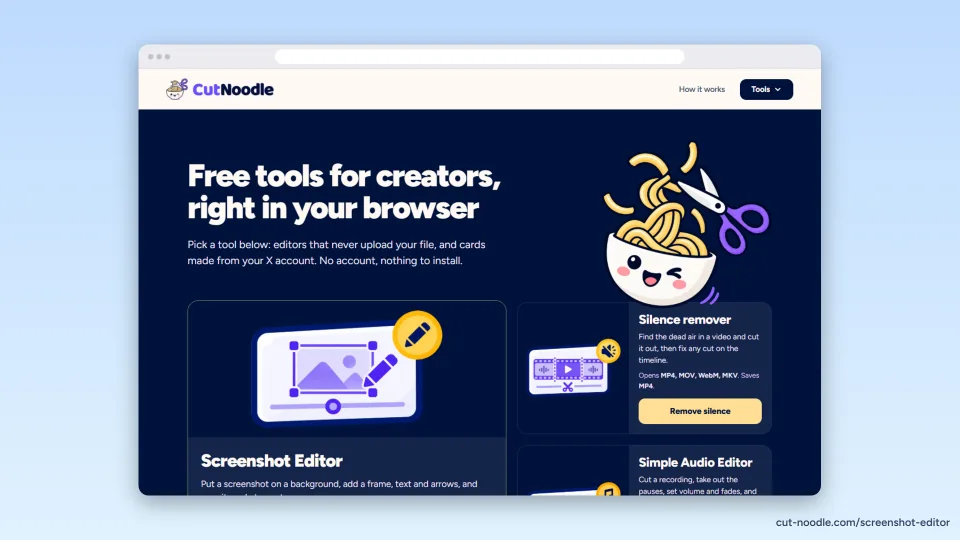
Browser window 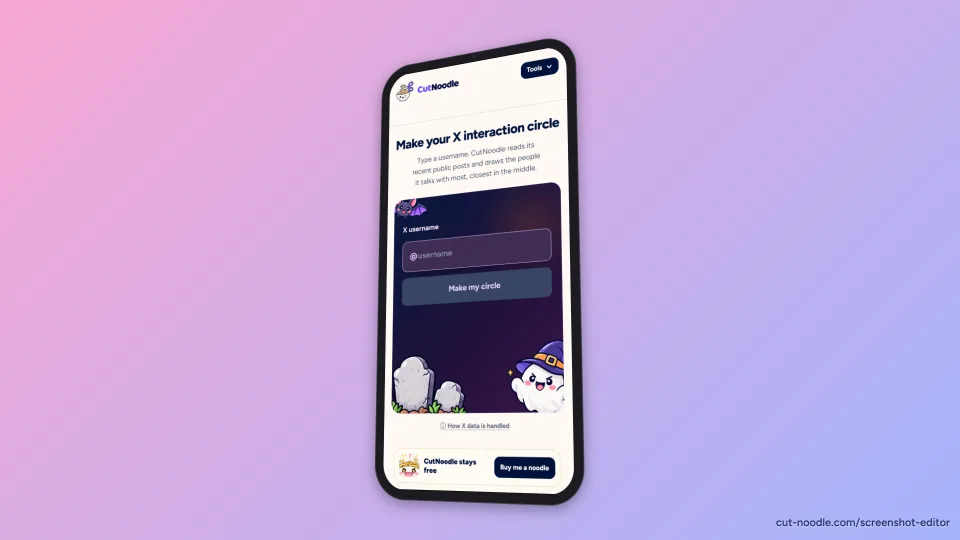
Phone in 3D 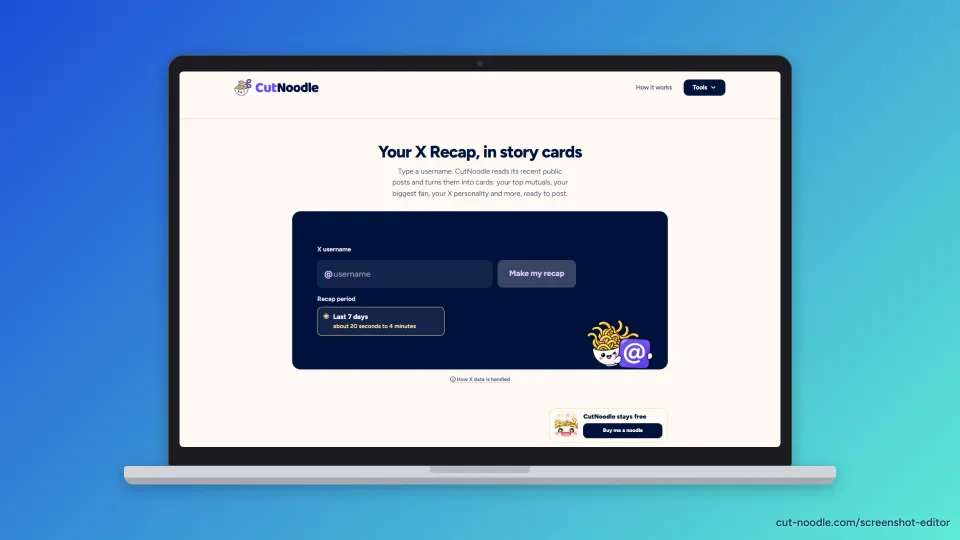
Laptop 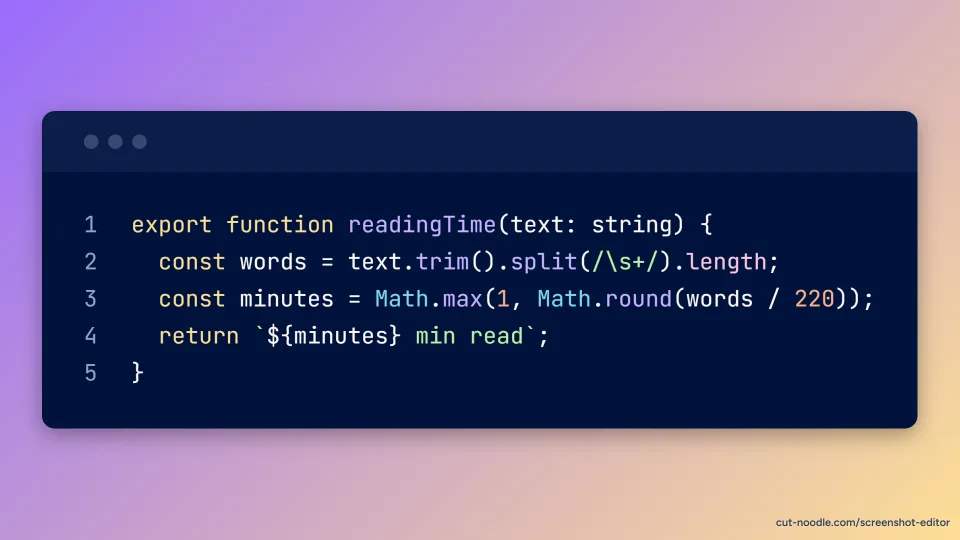
Code as an image
Screenshot Editor turns a plain screenshot into an image ready to post: a background behind it, room around it, rounded corners, a shadow, a browser window or a device around it, and the size each platform expects. Open an image, pick a style, adjust what you like and download it.
Everything is drawn in your browser. There is no sign-up and no limit, and the small credit in the corner comes off with one click.
What you can do with a screenshot
- Styles: nine ready-made looks that set the background, padding, corners, shadow, frame and tilt in one click.
- Background: 18 gradients, 17 solid colours or any colour you choose, 20 mesh and glow backgrounds, 49 photos from Unsplash, or one of your own pictures, sharp or blurred.
- Shape: padding, rounded corners, a soft to strong shadow, size and position.
- Frames: a light or dark browser window with an address you type, or a generic phone, tablet or laptop.
- 3D tilt: turn the image left, right or lean it back, or set the angles yourself.
- Text: up to 20 texts in six fonts, any colour and size, moved and resized on the image with the mouse or a finger.
- Draw: arrows, rectangles, circles and a highlighter, plus Blur and Pixelate zones to hide private details.
- Formats: Auto, 16:9, 1:1, 4:5, 9:16, X post, LinkedIn, YouTube thumbnail and link preview.
- Animate: six short animations with a live preview, saved as an MP4, WebM or GIF of 3, 5 or 10 seconds.
- Export: PNG, JPEG or WebP at 1x to 4x, copy to the clipboard, your own file name. Undo and redo, and the usual keyboard shortcuts.
More ways to start
- X post: paste the link of a public post on X and get it as a clean card, light, dim or dark, ready to edit like any screenshot.
- Code: paste code and get it as an image in a window, with line numbers and colours for 20 languages and four themes.
- Store: up to 10 app store screens with a title, a subtitle and a phone, at App Store or Google Play sizes, downloaded one by one or as a ZIP.
- Convert: compress and convert up to 50 images at once to PNG, JPEG or WebP, and download them as a ZIP.
What stays on your device
Your images are opened, drawn and saved in the browser tab: CutNoodle never receives them. The editor keeps your last screenshot and its settings in the browser's own storage, on this device, and opens it again when you come back: Start over clears it.
Two features reach outside the page, and only when you use them. X post sends the link's post ID to FxTwitter, an independent unofficial service, and loads the photos from X's image server. GIF downloads the video engine the other CutNoodle tools use. The privacy policy has the details.
What it does not do
- It does not take a screenshot of a web address for you: take the screenshot first, then open it here.
- It does not read private X posts, and it needs the link of one post at a time.
- It does not edit the picture itself: no retouching, colour correction or filters on the screenshot.
- Frames are generic drawings, not the mockup of a specific phone or laptop model.
- Text and drawings are not saved inside the image as separate layers: once downloaded, the image is flat.
Before you post
The guide How to make a screenshot look good covers padding, backgrounds, shadows, the right size for each platform and how to hide private details properly.
Common questions
Is it really free?
Yes. There is no account and no limit on how many you make. A small cut-noodle.com credit sits in the bottom right corner of the image; untick it under Export and it is gone. Every tool on this page is part of the free CutNoodle tools.
Are my screenshots uploaded?
No. Images are opened, edited and saved in your browser tab. Two things do go out, and only when you use them: the link of an X post goes to FxTwitter to read the post, and the first GIF downloads the video engine CutNoodle uses for its other tools.
Which files can I open and save?
It opens PNG, JPG, WebP, GIF and AVIF. It saves PNG, JPEG and, where the browser can write it, WebP, at 1x to 4x. An animation is saved as MP4, WebM or GIF.
Is my work saved if I close the tab?
The editor keeps your last screenshot and its settings in this browser, on this device, and opens it again by itself on your next visit. To begin a new one from scratch, choose Start over at the top of the editor. Nothing is kept on a server, and clearing your browser data removes it. Store and Convert keep nothing; Store and Convert ask before you leave them with work open.
Does Blur hide a password safely?
Blur and Pixelate change the pixels in the file you save: the original pixels under the zone are not in it. A light blur can still let short text be guessed, though. For passwords, keys or card numbers, use Pixelate at a strong setting.
Can I make an image of a private X post?
No. The X post card reads public posts only, through FxTwitter, an independent unofficial service. It does not ask for an X login.
Does it work on a phone?
Yes. On a phone the settings open as sheets from the bottom of the screen. Very large images are made smaller when they are saved, so that the phone's browser can handle them, and the page says so when it happens.